
Help › Billing
Billing
Set up your prices once. After that, MowBill makes your regular customers’ invoices for you, and you print or email the whole batch in a few clicks.
1. Before your first bill
Four short setup pages, all under Settings. You only do these once.
Products
Settings › Products
Everything you bill for, with its usual price. Each one is a Service (mowing, hedge trimming), a Product (mulch, sod) or a Discount.
- Give each a short code, like
MOW, and a name. The name shows on the invoice. - The default price is filled in for you, and you can change it on any invoice. A discount is a minus amount, like
-10.00. - Tick Taxable for anything you charge sales tax on.
Terms
Settings › Terms
When invoices are due. MowBill starts you with Due upon receipt, Net 15 and Net 30. Add your own if you like, and pick which one is the default.
Sales tax
Settings › Taxes
- Add each rate you collect, like your state rate and your county surtax.
- Make a group that combines them, for example “Hillsborough County” with both rates, and make it the default.
Customers and properties use the default group unless you pick another. Changing a rate only affects new and draft invoices. Sent invoices keep the rate they had. If you don’t charge sales tax, skip this.
Invoice email
Settings › Invoice Email
The subject and message your invoices are emailed with. Placeholders like {customer_name} and {amount_due} are filled in for each customer. Tick the box to get a copy of every invoice email yourself.
2. How an invoice goes out
Every invoice starts as a draft. You can change a draft, or delete it.
When you print or email it, MowBill gives it its invoice number, dates it today and adds it to the customer’s balance. From then on it’s locked. To change a sent invoice you void it and make a corrected copy (see below), so your records always match what the customer got.
Each invoice is marked To be printed, To be emailed, or both. It starts from the customer’s “Send invoices by” setting, and that decides which pile it waits in.
3. Recurring billing
Billing › Recurring › Add Recurring
For customers you bill the same way every month or every few weeks. You can also start one from the customer’s page.
- Choose the customer, and the property if they have more than one.
- Give it a name, like “Weekly mowing”.
- Set Repeat every, for example 1 month, and a start date. Monthly invoices are made on the customer’s billing day.
- Add the lines, like mowing at $160 a month. These prices are what’s billed each time. Changing a product’s price later doesn’t change them.
- Pick the terms and press Save Recurring Invoice.
Once a day, at the recurring billing time in Settings › Company, MowBill makes a draft invoice for every customer who’s due. You get a summary email, and a phone notification if you’ve turned them on. The new invoices wait in the print and email piles for you.
To pause a customer’s billing, edit their recurring invoice and untick Active. When you turn it back on, billing picks up from the next period, and the paused months aren’t billed.
4. One-time charges
Billing › Charges › Add Charge
For extras like a cleanup, mulch or a repair. You can add one from the customer’s page too.
- Choose the customer, the item, the quantity and the price.
- Set Bill after. It starts as today.
- Press Add Charge.
The charge goes on the customer’s next recurring invoice on or after that date, so they get one bill instead of two. A customer with no recurring billing gets an invoice of their own on their billing day.
5. A single invoice
Billing › New Invoice
For one-off jobs, or when you need a bill out right away.
- Choose the customer, and the property if it matters.
- Check the date and terms. The due date follows the terms, and you can change it.
- Add the lines, and any notes for the customer.
- Tick To be printed or To be emailed, then press Save Invoice.
Open a draft to see Preview PDF, which shows exactly what the customer will get.
6. Print and email
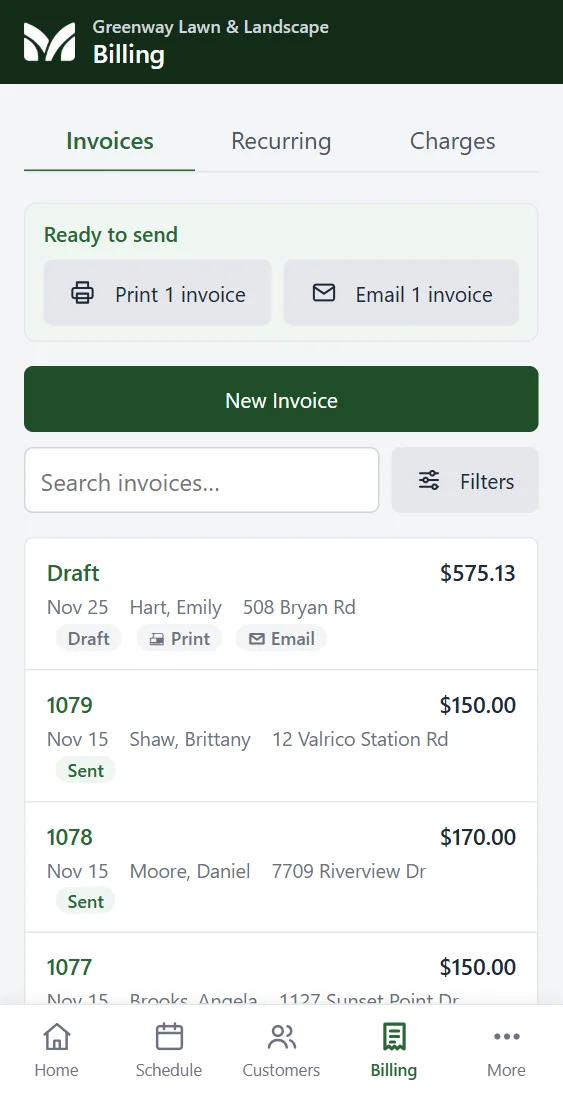
When invoices are waiting, the Billing page shows a Ready to send bar, with a button for each pile.
- Press Print on the Ready to send bar.
- Tick the invoices to print, or tick All, and press Print Selected.
- Open the PDF and print it. Every invoice is in one file, each on its own page.
- Back in MowBill, press Yes, all printed. If the printer jammed, press Some didn’t print and tick the ones that didn’t. They stay in the pile, with the same numbers, to print again.
Printed invoices fit a standard double-window envelope. If you take payments online, each one also has a scan-to-pay QR code.
- Press Email on the Ready to send bar.
- Press Send all now, or tick some and press Email Selected.
Each customer gets your invoice email with the invoice attached as a PDF. If they reply, it goes to your company email. Each invoice keeps a history of when it was emailed, and to whom.
7. Fix a sent invoice
Open the invoice and press Void This Invoice. It keeps its number and stays in your records, marked Void, and it comes off the customer’s balance. Any one-time charges on it go back to waiting.
If it needs to go out again with changes, press Create Corrected Copy on the voided invoice. You get a new draft with the same lines, ready to fix and send. The two invoices link to each other.
Drafts are simpler: press Edit Invoice, or Delete Draft.
8. Statements and past-due reminders
Statements
Customer page › Account › Statement
A statement lists a customer’s invoices and payments for the dates you pick, with what they owe now. Press Print Statement or Email Statement. It’s handy for customers who ask “what do I owe?”, or at the end of the year.
Past-due reminders
When an invoice is past due, its page shows a Past Due box with how much and how many days. Send a reminder from there:
- Email: a reminder email with a past-due copy of the invoice attached. You can change the message before it goes.
- Text: opens your phone’s Messages app with a reminder ready to send.
- Print: a past-due copy to mail, showing today’s balance.
On the Customers list, the Past due filter shows everyone who owes you money that’s overdue.