
Help › Schedules and crews
Schedules and crews
A schedule says what you do at a property and how often, like weekly mowing. Each schedule always has its next visit waiting. When your crew completes or skips it, MowBill books the next one for you.
1. Set up your crews
Settings › Crews › Add Crew
- Give the crew a name, like “Crew 1” or “Marcus’s crew”.
- Pick its crew leader. Leaders must be Supervisors, or an Admin who runs a crew. One person can lead more than one crew.
- Press Add Crew.
Even if you work alone, make one crew for yourself. Every schedule belongs to a crew.
To make someone a Supervisor, change their role under Settings › Users. See Add your team.
2. Add a schedule
Property page › Schedules › Add Schedule
- Choose the crew and type the service, like “Lawn maintenance” or “Hedge trimming”.
- Choose One time for a single job, or Recurring for regular work.
- Set the start date, and a time if you like. Times set the order of the day on your crew’s list. Leave it blank for any time of day.
- Add an estimated time in minutes, for example 45. It’s optional, but it gives you hours for the day and the week (see below).
- For recurring work, set Repeat every, for example 1 week or 2 weeks.
- Press Add Schedule.
Next visit is based on
- The original schedule: visits stay on their day, for example every other Tuesday, even if one runs late. Best for most mowing.
- When the last visit was completed: the next visit counts from when the crew actually finished. Good for work like “every 6 weeks” where the exact day doesn’t matter.
You can also set an end date, for a job that stops on a known day, and add notes for the crew.
3. The Schedule page
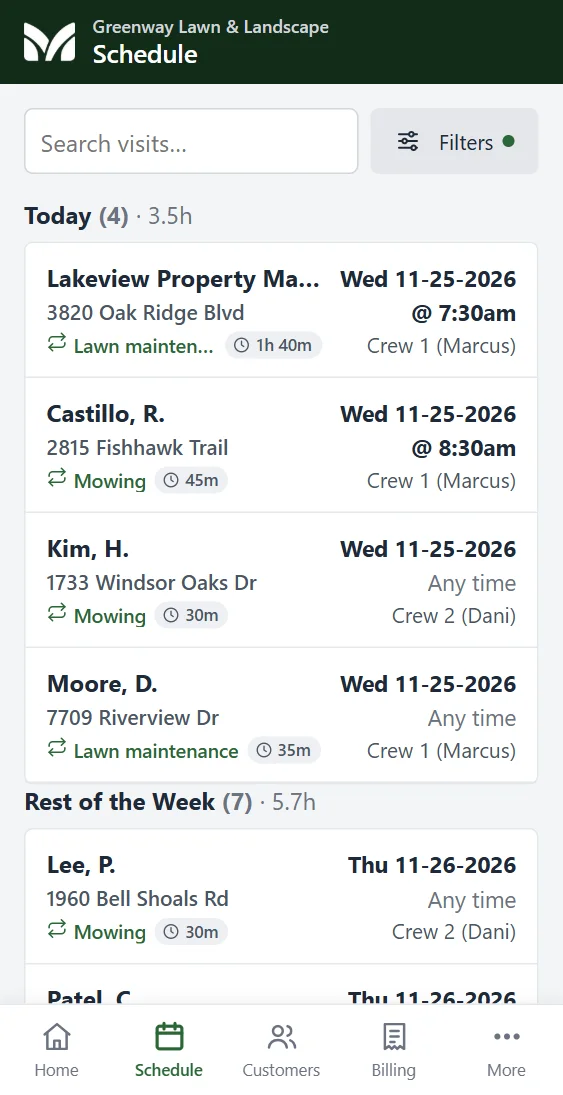
The Schedule page is your crews’ work list. Open visits are grouped into Overdue, Today, Rest of the Week and Later, with Recently Finished at the bottom. Each day is in order of the visit times.
- Filters: show all crews, your own crews, or one crew. The page remembers your choice on each device, and crew leaders start on their own crews.
- Search: find a visit by customer name, address or service.
- Nearby: on a phone, overdue visits and ones due in the next few days that are within a quarter mile of you move to the top. That way nothing gets missed while you’re in the neighborhood.
4. Complete or skip a visit
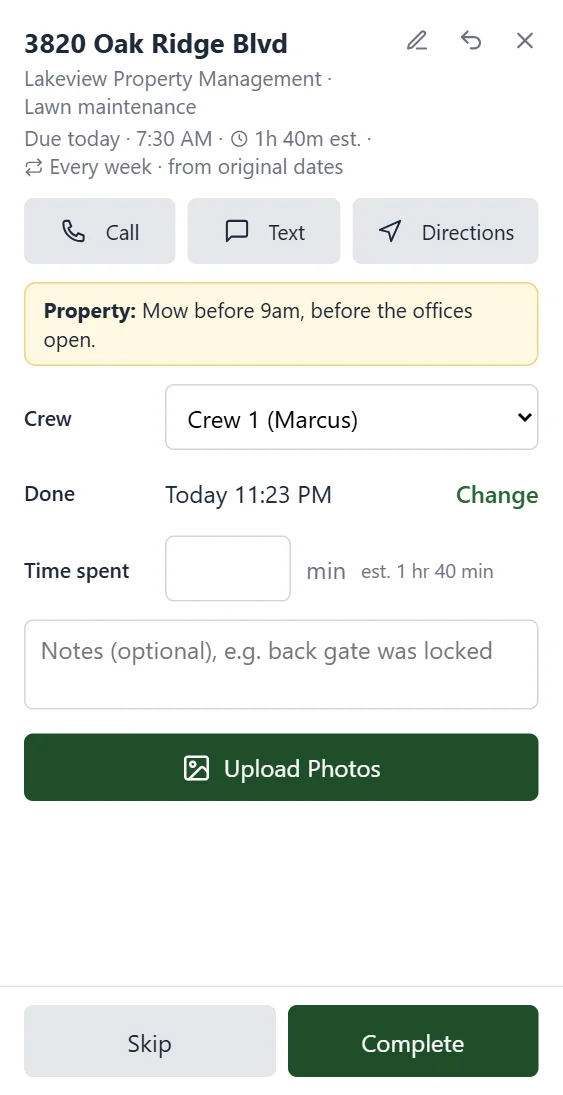
Tap a visit to open it. You’ll see the address, the notes for the crew, and a Directions button that opens Google Maps.
- Time spent: type how many minutes the job took. If you leave it blank, MowBill uses the schedule’s estimate.
- Photos: tap Take Photo to use the camera, or Upload Photos to pick from the phone. Up to 8 per visit, for example before and after, or proof the lawn was cut. Photos are kept for a year.
- Notes: anything the office should know, like “back gate was locked”.
- Press Complete.
The visit is dated now. If you’re catching up later, press Change to set the date and time it was really done.
Couldn’t do the job because of rain or a locked gate? Press Skip instead. Either way, the next visit is booked for you.
5. Fix a mistake
Completed the wrong visit? Open it again and tap the undo arrow at the top. The visit goes back to open, and the next visit it booked is removed. Any photos taken on that visit are deleted too.
- Crew members can undo their own visits within 15 minutes.
- Admin and Office users can undo any visit, any time.
Admin and Office can also correct the time spent on a completed visit.
6. Estimated times and hours
Estimated times are optional, but they’re worth a few minutes to set up:
- The Home page shows the week’s yards and hours, done and left, and how much work is due today.
- Schedules with no estimate show up as a reminder on Home. It opens a page where you can enter them all at once.
- Estimates to review on Home lists schedules where your crew’s actual times don’t match the estimate. One tap sets the estimate to their average.
- Times feed the Hourly rate report, which shows what each customer really pays you per hour.
7. Pause for the off-season
Edit the schedule and untick Active. Its upcoming visit is canceled. When the season starts again, tick Active and the next visit comes back.
Changing a schedule’s dates, repeat or crew moves its upcoming visit to match.
8. What crew leaders can see
Settings › Crews › What Crew Leaders Can Do
Crew members only see the schedule and the work in front of them, never invoices, payments or prices. Two switches decide how much more crew leaders see:
- See customers’ phone numbers and email: adds Call and Text buttons to each visit, so a leader can tell a customer they’re on the way. Turn it off and leaders don’t get customers’ contact details anywhere in the app.
- See equipment and parts: leaders can look up a machine’s part numbers and service history, without prices and without making changes.